Approve expenses on your phone
Mobile approval: review expenses on your phone, approve clean ones in bulk, and reject or send back with a reason — from anywhere.
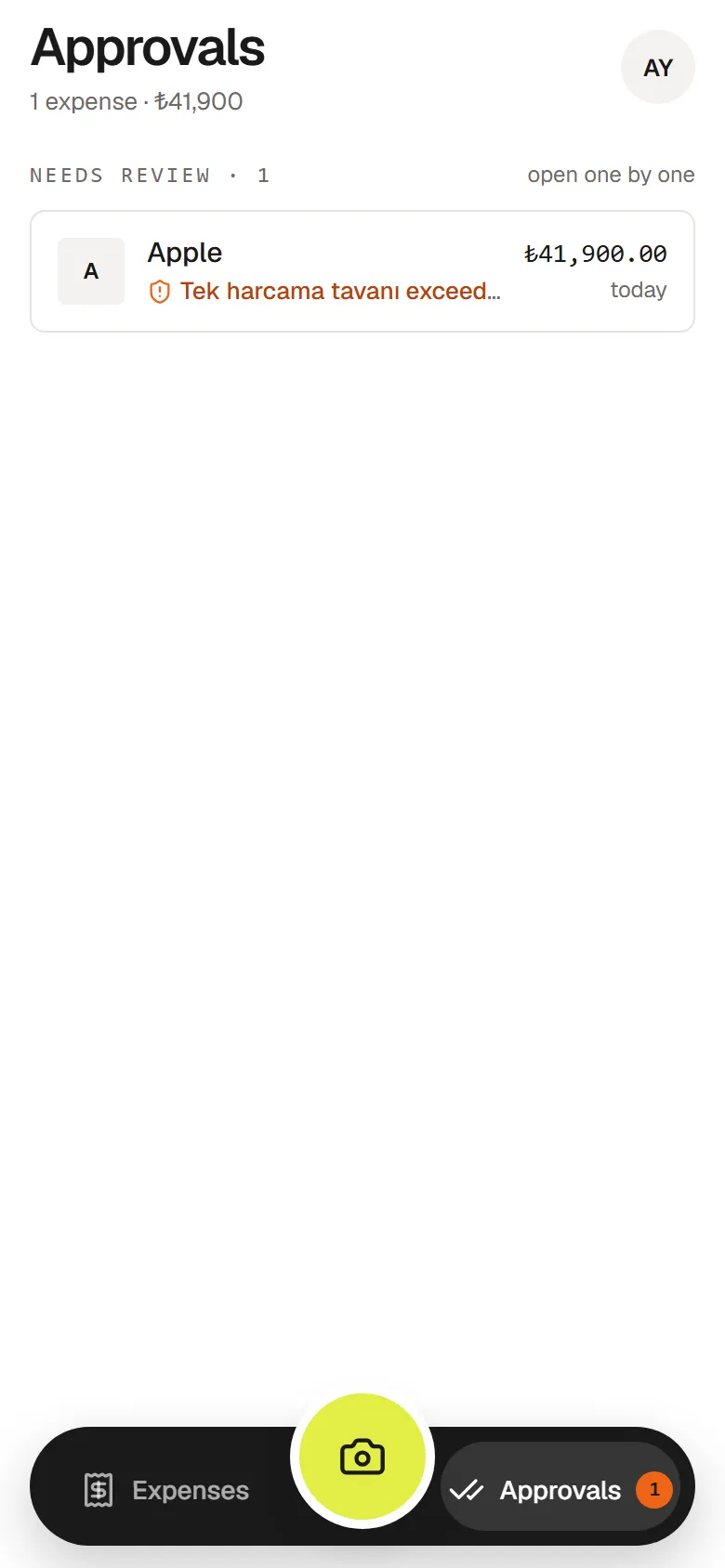
When an expense is waiting for you, it shows up in Approvals on your phone. The badge on the tab tells you how many are waiting.
Two lists, two speeds
| List | What’s in it | How you decide |
|---|---|---|
| Needs review | Expenses with something to look at — a spending rule, a possible duplicate | One by one |
| Ready to approve | Expenses with no warnings | Together, in one tap |
Open Approvals
Tap Approvals in the bottom bar.
Review what needs a look
Open each expense under Needs review. Check the receipt and the details, then choose Approve, Correct or Reject.
Approve the rest together
Under Ready to approve, untick anything you want to leave out and tap Approve N expenses.
Your options
- Approve — the expense moves to the next approver, or is approved if you’re the last one.
- Correct — the expense goes back to the person who submitted it, with your note, so they can fix it.
- Reject — the expense is declined.
Correcting and rejecting both need a reason (up to 500 characters). The submitter sees it and gets notified.
Decisions are final. Each expense approved together is recorded on its own history as a bulk approval.
Troubleshooting
An expense can’t be approved. It may be a possible duplicate of another expense. Open it and review both records first.
The buttons aren’t available. You can read expenses offline, but deciding needs a connection.