Organise your team with departments and projects
Departments work like cost centers: with managers and projects they decide who approves an expense and how spend is broken down in reports.
Departments and projects mirror how your company works — departments act as your cost centers. They decide who approves an expense by default, and they give your reports their most useful breakdowns.
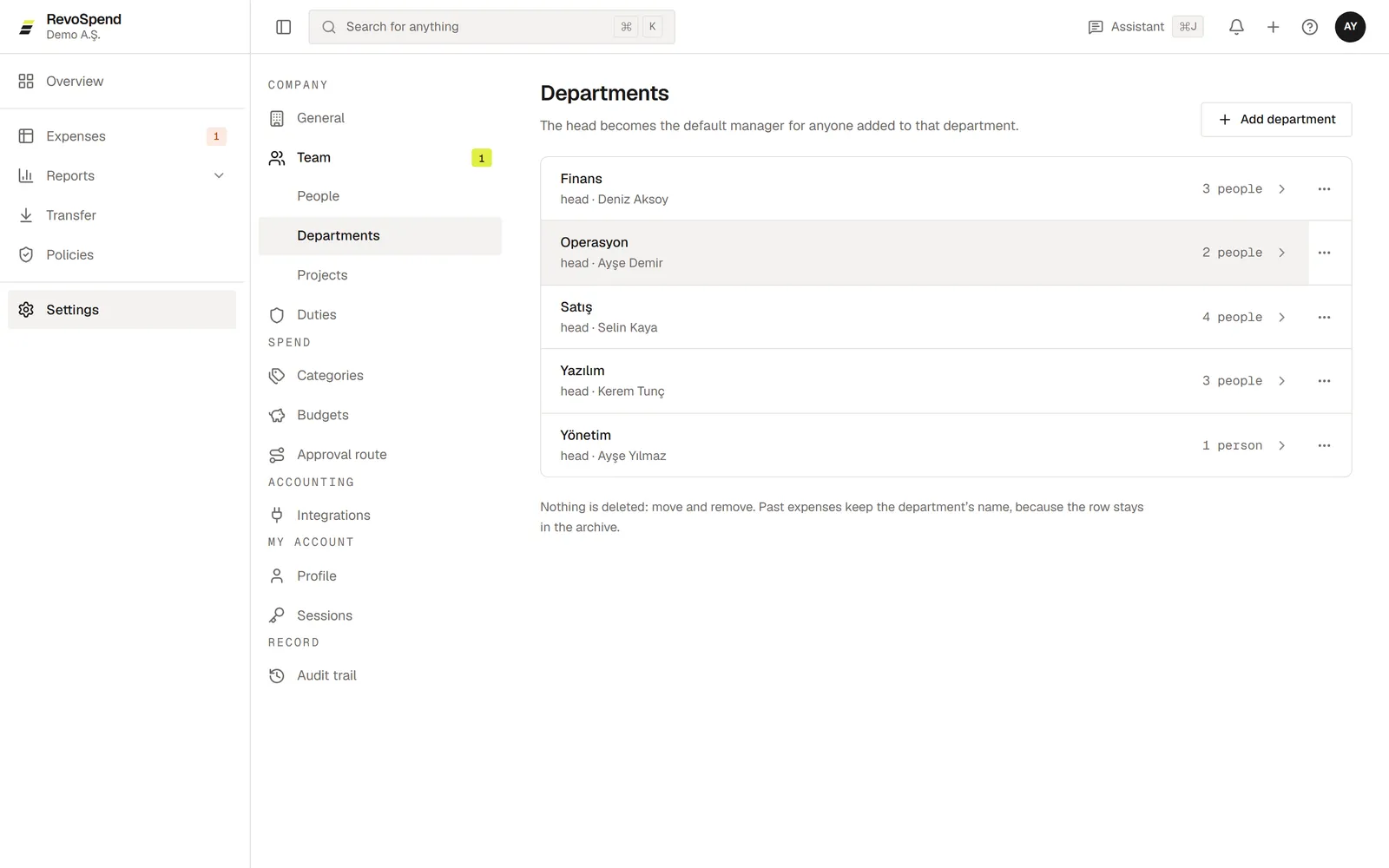
Departments
Open Departments
Go to Settings → Team → Departments and click Add department.
Name it and choose a head
Enter the Department name and choose a Head. The head is the default manager for everyone in the department.
Put people in it
In Settings → Team → People, set each person’s Department.
To close a department, choose Move and remove: its people move to another department and the department is archived. Past expenses keep the department they were recorded with.
Managers
Each person can have a Manager. If you leave it empty, their department head is their manager. When your approval route says The submitter’s manager, this is who approves.
Projects
Open Projects
Go to Settings → Team → Projects and click Add project.
Fill in the details
Enter the Project name, choose a Lead, and set the Start and End dates.
After a project’s end date, new expenses can no longer be filed against it. A project lead can approve the project’s expenses when your approval route includes a Project lead step.
Changing departments, managers or project leads takes effect for expenses submitted from then on. Expenses already in approval keep their approvers.