Set budgets
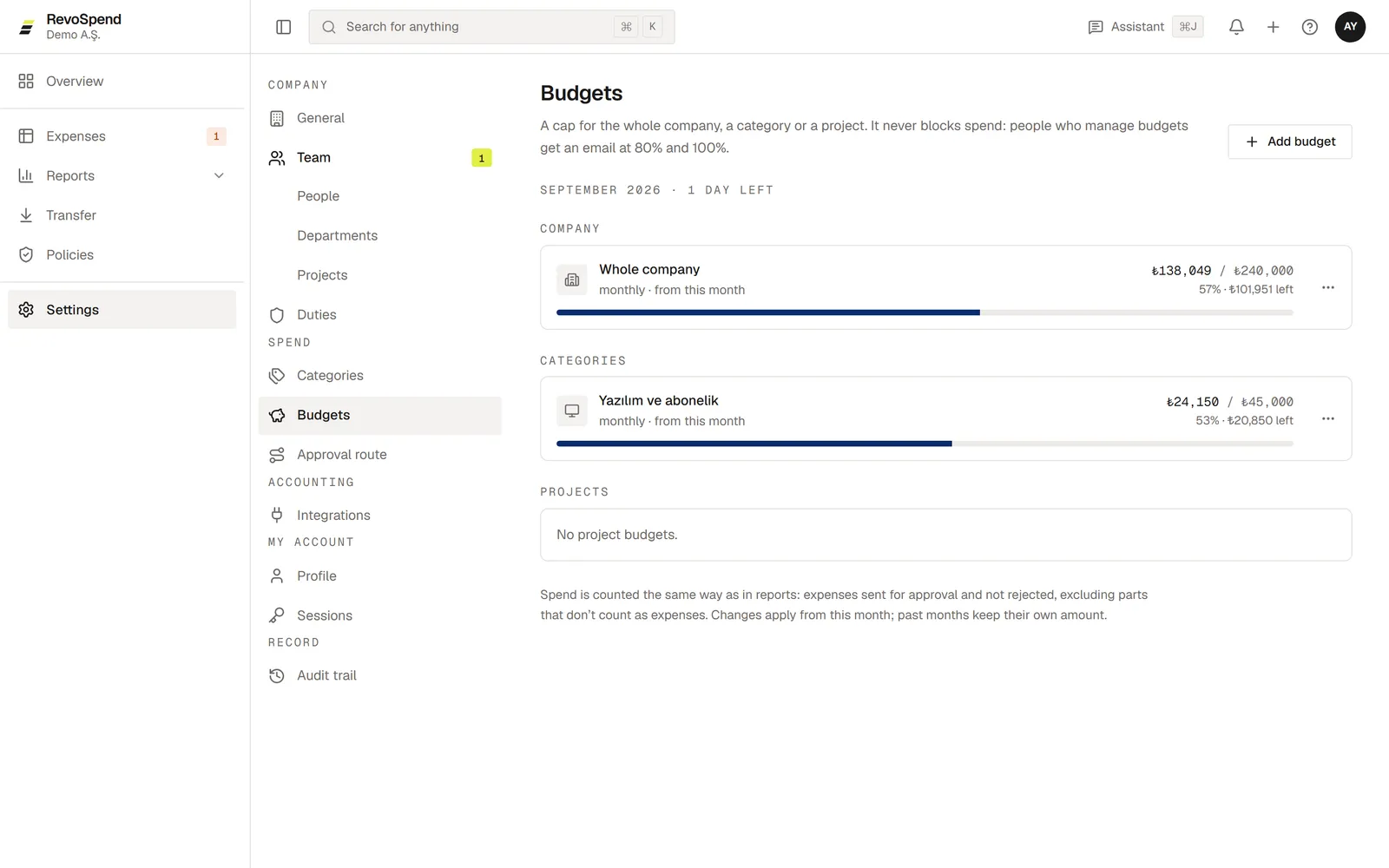
Set a monthly budget for the company, a category or a project budget, and track spend against it. Budget alerts go out at 80% and 100%.
Budgets show how much of the plan is left while there’s still time to act — spend tracking for the whole company, a category or a project budget. They never block spending: budget alerts keep the right people informed.
Before you start
Owners, admins and people with the Finance duty set budgets.
Open Budgets
Go to Settings → Budgets and click Add budget.
Choose what it’s for
Under For, choose Whole company, a Category or a Project.
Set the amount
Enter the Monthly amount. For a project, you can choose Total instead — a cap on everything spent since the project started. Save.
Keeping track
- Each budget shows how much is used and how much is left this month.
- The Overview page shows what’s left of this month’s budgets.
- People who manage budgets get an email when spending reaches 80% and 100%.
Spend is counted the same way as in reports: expenses sent for approval and not rejected, excluding parts that don’t count as business expenses. A change to a monthly budget applies from this month — past months keep their own amount.