Approve, reject or request a correction
Work through your approval queue: review what needs a look, bulk approve clean expenses, and reject or request a correction with a reason.
When an expense reaches your step, it appears in Expenses → Approval queue. You only see expenses that are waiting for you right now.
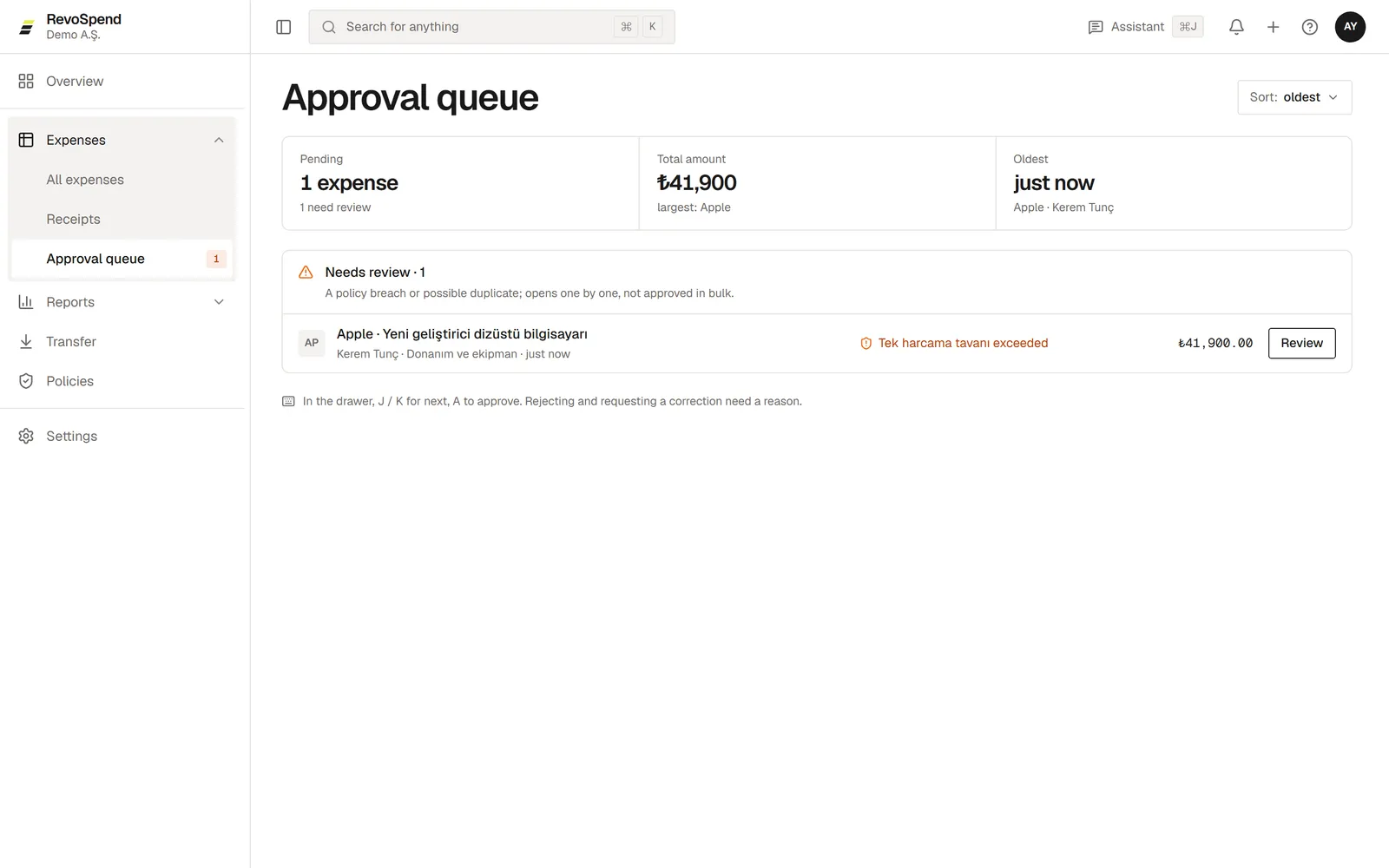
Two groups
| Group | What’s in it |
|---|---|
| Needs review | Expenses outside a spending policy, or with a possible duplicate. Open them one at a time. |
| Bulk approvable | Expenses with no warnings. Approve them together. |
Open the approval queue
Go to Expenses → Approval queue.
Review what needs a look
Open each expense under Needs review. Check the receipt, the details and — if a policy was exceeded — the submitter’s justification.
Decide
Click Approve, Request correction or Reject.
Approve the rest together
Under Bulk approvable, click Select all — or pick the ones you want — and approve them in one go.
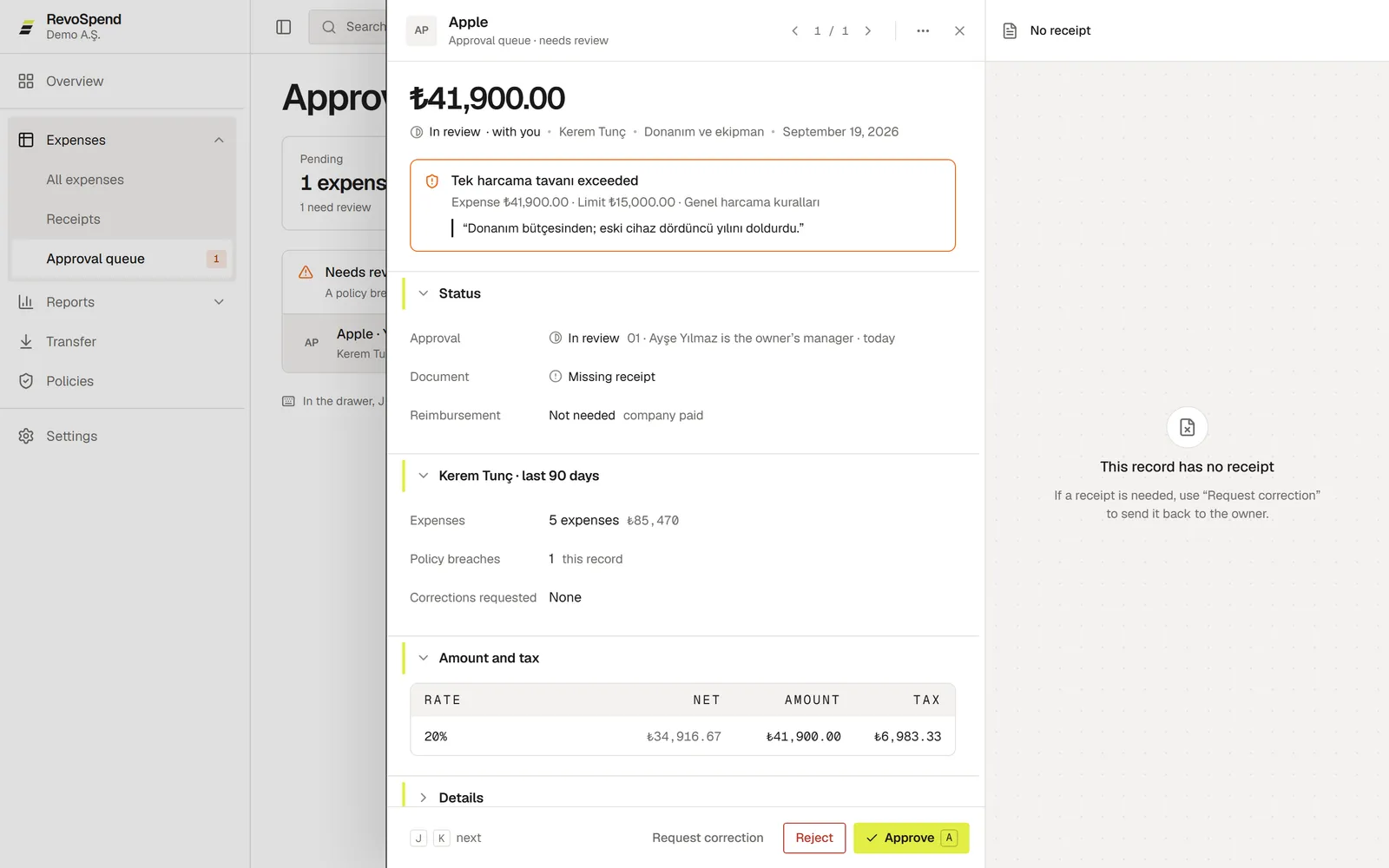
Your options
| Decision | What happens |
|---|---|
| Approve | The expense moves to the next step, or is approved if yours was the last. A note is optional. |
| Request correction | The expense goes back to the submitter with your note under What needs correcting? They fix it and resubmit. |
| Reject | The expense is declined with your Reason for rejection and closes. |
Decisions are final. Expenses approved together are each recorded as a bulk approval in their own history.
Work faster with the keyboard
Press J and K to move between expenses and A to approve. Sort the queue by oldest, newest or amount.
When several people are on a step
A step can go to a group — for example everyone with the Finance duty. If it’s set to any one of them, the first approval completes the step. If it’s all of them, the step waits for everyone.
Reminders
If an expense waits too long, you get a reminder, and after a while it also goes to your manager. Turn on Daily reminder summary in Settings → Profile to get one email a day with everything waiting for you.
Troubleshooting
“This expense has a possible duplicate”. Review both records first. See Possible duplicate receipts.
“You already decided on this step”. Your decision is recorded; the expense is waiting for someone else.
I expected an expense that isn’t in my queue. It may still be at an earlier step. Expenses appear in your queue when it’s your turn.