Add an expense from a receipt
Add an expense by uploading a receipt: receipt scanning fills in the merchant, date, amount and tax. Check it, then submit for approval and reimbursement.
Every expense starts with a receipt. To add an expense, upload the receipt and RevoSpend’s receipt scanning reads it for you — merchant, tax number, receipt number, date, amount, currency and the tax breakdown. No more typing up an expense report: you check the result, nothing is saved until you do.
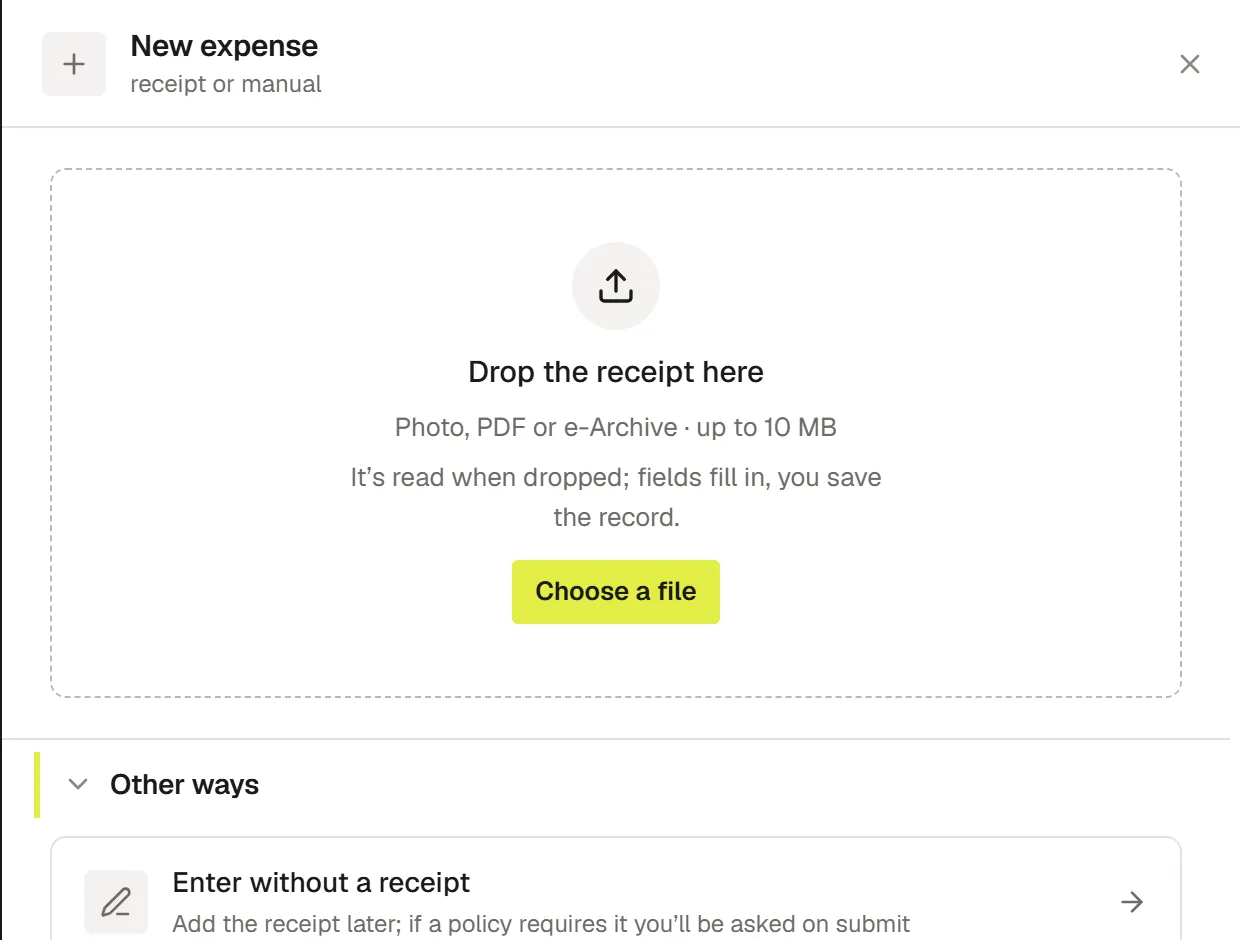
Upload the receipt
Go to Expenses → All expenses and click Upload receipt. Drop the file or pick it from your computer. Photos (JPEG, PNG, WebP) and PDFs up to 10 MB are accepted.
Let RevoSpend read it
While the receipt is being read, the form shows Reading the receipt. You can start typing right away — a field you touch is never overwritten. Fields filled from the receipt are marked from receipt.
Check the details
Fields RevoSpend couldn’t read clearly get an orange border and the note Not clearly legible on the receipt — check it. Compare them with the receipt, then choose a Category and who paid.
Save or submit
Click Save and submit to send the expense for approval, or Save as draft to finish it later.
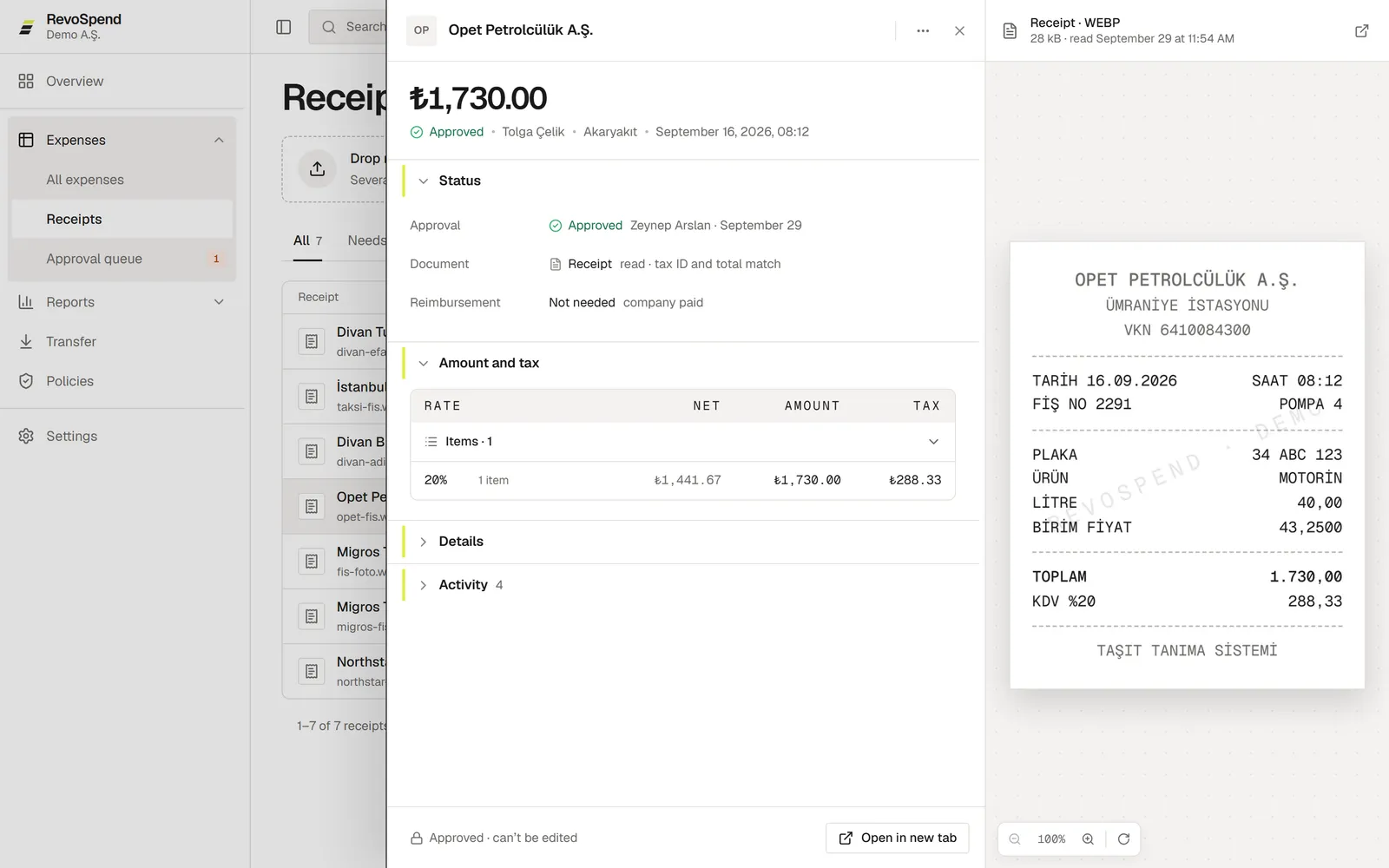
The fields
| Section | Fields |
|---|---|
| Document | Merchant (required), Tax number, Receipt no., Date and time |
| Amount and tax | Currency, Amount, tax rates — or Enter line items to record each item on the receipt |
| Classification | Category, Paid by (Company or Employee), Note |
Paid by matters: when an Employee paid, the approved expense is reimbursed to them. When the Company paid, no reimbursement is needed.
Receipts with more than one tax rate
A single receipt can carry several tax rates — for example food and non-food items at the supermarket. RevoSpend records each rate on its own row. Click Add a rate to add one by hand. The rows must add up to the receipt total before you can save.
If the tax rate isn’t printed clearly, RevoSpend tells you instead of guessing. Pick the rate by looking at the receipt.
Foreign currency
Choose the currency printed on the receipt. RevoSpend shows the exchange rate it uses to convert the amount into your company’s currency. To use the rate on your card statement instead, choose Your own rate.
No receipt yet?
Open New expense → Record an expense or choose Enter without a receipt and add the receipt later. If one of your company’s policies requires a receipt, you’re asked for it when you submit.
On your phone it’s even faster
Snap the receipt the moment you get it. See Snap receipts with your phone.
Troubleshooting
The Save buttons are disabled. Fill in the Merchant and make sure the tax rows add up to the amount.
“This category is turned off. Pick another one.” Your company no longer uses that category. Choose another one.
“This month’s reads are used up”. Fill in the fields yourself — the receipt stays attached. Your company admin can upgrade the plan.
The receipt couldn’t be read. See Why a receipt can’t be read.