Roles and duties explained
User roles and permissions in RevoSpend: Owner, Admin and Member access, the Finance and Accounting duties, and how the approver is worked out.
RevoSpend keeps two questions apart: who runs the company account and who does the finance work. You set both for each person — and one person can have both. Approval isn’t something you tick: it follows from your team structure and approval route.
Account access
| Access | What they can do |
|---|---|
| Owner | Everything an Admin can do. One per company — the person who created it. |
| Admin | Manage the team, invitations, company settings, the approval route and billing. See all expenses and export. |
| Member | Add and submit their own expenses and act on what’s asked of them — such as approvals. |
You choose Member or Admin when you add a person, and can change it later in Settings → Team → People.
Duties
Duties give people the finance work on top of their access.
| Duty | What it adds |
|---|---|
| Finance | See all expenses, check documents, mark reimbursements as paid, manage categories, spending policies and budgets, view reports |
| Accounting | See all expenses, export, send expenses to your accounting program, manage categories, view reports |
A person can hold both duties.
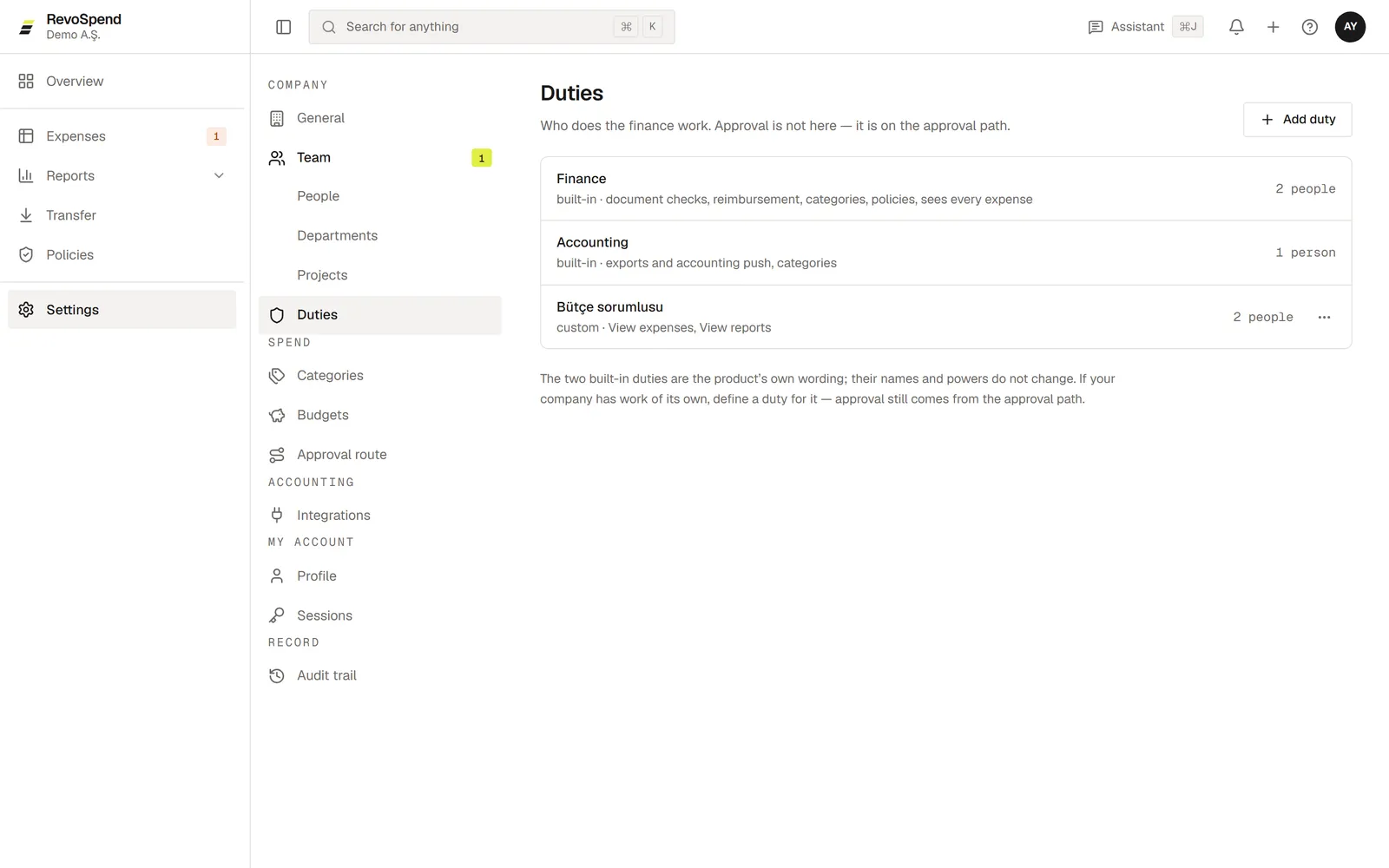
Custom duties
Need something more specific — for example a department assistant who sees their department’s expenses? Create your own duty.
Open Duties
Go to Settings → Duties and click Add duty.
Choose what they can do
Under What they can do, pick the permissions and, where it applies, the reach: Own department or Whole company.
Choose who holds it
Under Who holds it?, add the people.
Who approves
Approval rights aren’t assigned — RevoSpend works them out. Someone approves an expense because they are:
- the submitter’s manager (directly, or as their department head),
- a project lead for a project expense,
- named on a step of your approval route, or hold a duty a step points to,
- the delegate of an approver who’s on leave, or
- the fallback approver.
Open a person in Settings → Team → People to see exactly what they approve and why, under Approves — worked out, not chosen. To change who approves, change the team structure or the approval route.