Add and invite your team
Add users one by one or import a list of employees, then send activation links to invite them. A seat is taken when the link is sent.
Adding users to RevoSpend is a two-step process on purpose: first you add your employees and organise the team, then you invite them by sending activation links when everything’s in place. Nobody gets an email until you decide.
Before you start
- You’re an Owner or Admin.
- Your plan has enough seats for everyone you’re about to invite.
Open People
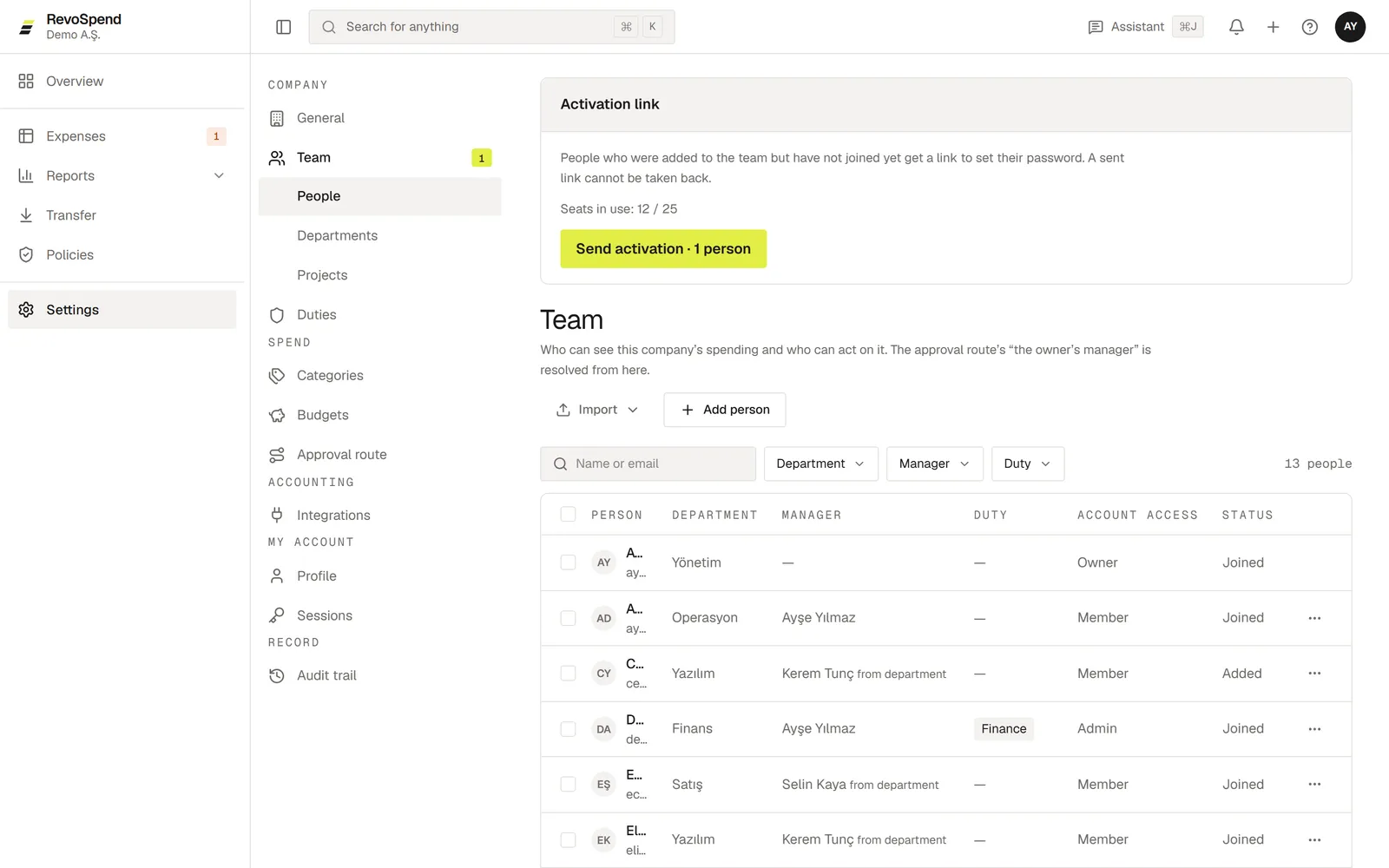
Go to Settings → Team → People.
Add people
Click Add person and fill in Full name and Email. Optionally choose a Department, a Manager, a Duty and their Account access. Use Add and start another to keep going.
Send the activation links
In the Activation link panel, click Send activation. Everyone who hasn’t joined yet gets an email with a link to set their password.
They’re in
When someone sets their password, their status changes to Joined and they can start adding expenses.
Add many people at once
Click Import and choose:
- CSV or Excel file — up to 5,000 rows. Only Full name and Email columns are required.
- Paste an email list — separate addresses with commas, semicolons or new lines. If you paste Full Name followed by the address in angle brackets, the name comes along too.
Statuses
| Status | What it means |
|---|---|
| Added | On the team, but no email has been sent yet. Doesn’t use a seat. |
| Link pending | The activation link was sent. Uses a seat. |
| Joined | They set their password and can use RevoSpend. |
Seats
A seat is taken when the activation link is sent, not when the person is added — so you can build your whole team first. A person counts as one seat even if they work in several of your companies. Removing someone frees their seat.
The activation link is valid for 7 days and works once. Sending activation again issues a fresh link to everyone who hasn’t joined — earlier links stop working.
Troubleshooting
“Not enough seats”. Links go out to everyone at once, so you need a seat for each person. Add seats in Settings → Billing → Subscription, then send again.
The email didn’t arrive. Ask them to check their spam folder. If the link has expired, send activation again.
“That address is already on the team”. The person is already on the list — search for them in People.