Send expenses to your accounting program
Send approved expenses to your accounting software as vendor bills or journal entries, or to a file. Every transfer is read back for reconciliation.
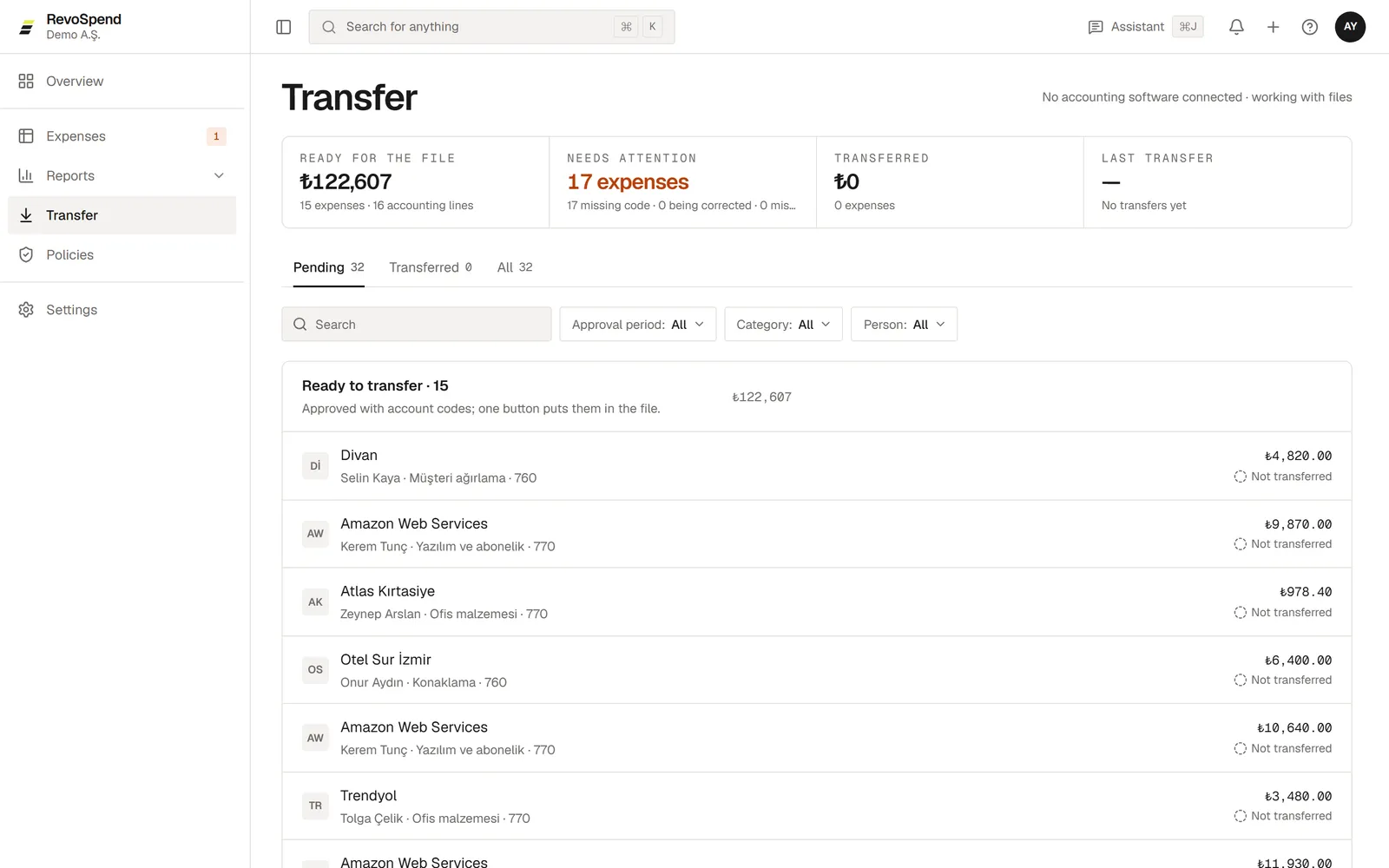
The Transfer screen is where approved expenses leave RevoSpend for your accounting software — straight into Odoo as vendor bills and journal entries, or as an Excel or CSV file your accounting team imports. Every expense is transferred once, and every amount is read back, so reconciliation is built in.
Before you start
Owners, admins and people with the Accounting duty transfer expenses.
Open Transfer
Click Transfer in the sidebar. Pending shows what’s waiting.
Check what’s ready
Expenses under Ready to transfer can go. Anything under Needs attention has something to fix first — for example a category without an account code.
Send
Click Send to Odoo, or Transfer to a file and choose Excel or CSV.
Read back and confirmed
After writing to Odoo, RevoSpend reads the document back and compares it with the expense. A match shows Matched. Any difference in total, currency or tax — even 0.01 — shows Mismatch, so nothing slips through.
Statuses
| Status | What it means |
|---|---|
| Not transferred | Approved and waiting |
| Missing account code | The category isn’t mapped to an account yet |
| Sending | On its way to Odoo |
| Transferred · Matched | In Odoo, and the amounts match |
| Mismatch | In Odoo, but the amounts differ — check the document |
| Couldn’t send | Odoo didn’t accept it — the row says why |
| Needs a correction | The expense changed after it was transferred |
Transfer to a file
The file has one row per accounting line — each part of an expense at each tax rate — with the account code from its category. Downloading counts the expenses as transferred, so the same expense never lands in two files.
Correcting a transferred expense
Open the expense and choose How to correct:
- Accounting correction — for the category or document details. No new approval is needed.
- Send to the owner — for a wrong amount, date or merchant. The expense goes through approval again.
If the expense went to a file, the correction goes into your next file as a reversal plus new lines, so only the difference reaches your books.
If the expense went to Odoo, the document there is locked once posted. Fix it in Odoo, then click Fixed in the program in RevoSpend. The row shows the Odoo document number to make it easy to find.
Merchant rules
When a company-paid expense goes to Odoo, tick Always use this contact for this merchant on the row. Next time, RevoSpend uses that contact for the merchant automatically.
Every transfer, file download and correction is written to the audit trail.
Troubleshooting
“The connection isn’t ready to send”. Finish the Odoo settings: company, journals, payment account and contact settings. See Map categories, taxes and people to Odoo.
“Transfers are done by the Accounting role”. Ask an admin to give you the Accounting duty.