Set up and change your approval route
Set up your expense approval workflow: single or multi-level approval, approval rules by amount and category, special flows and a fallback approver.
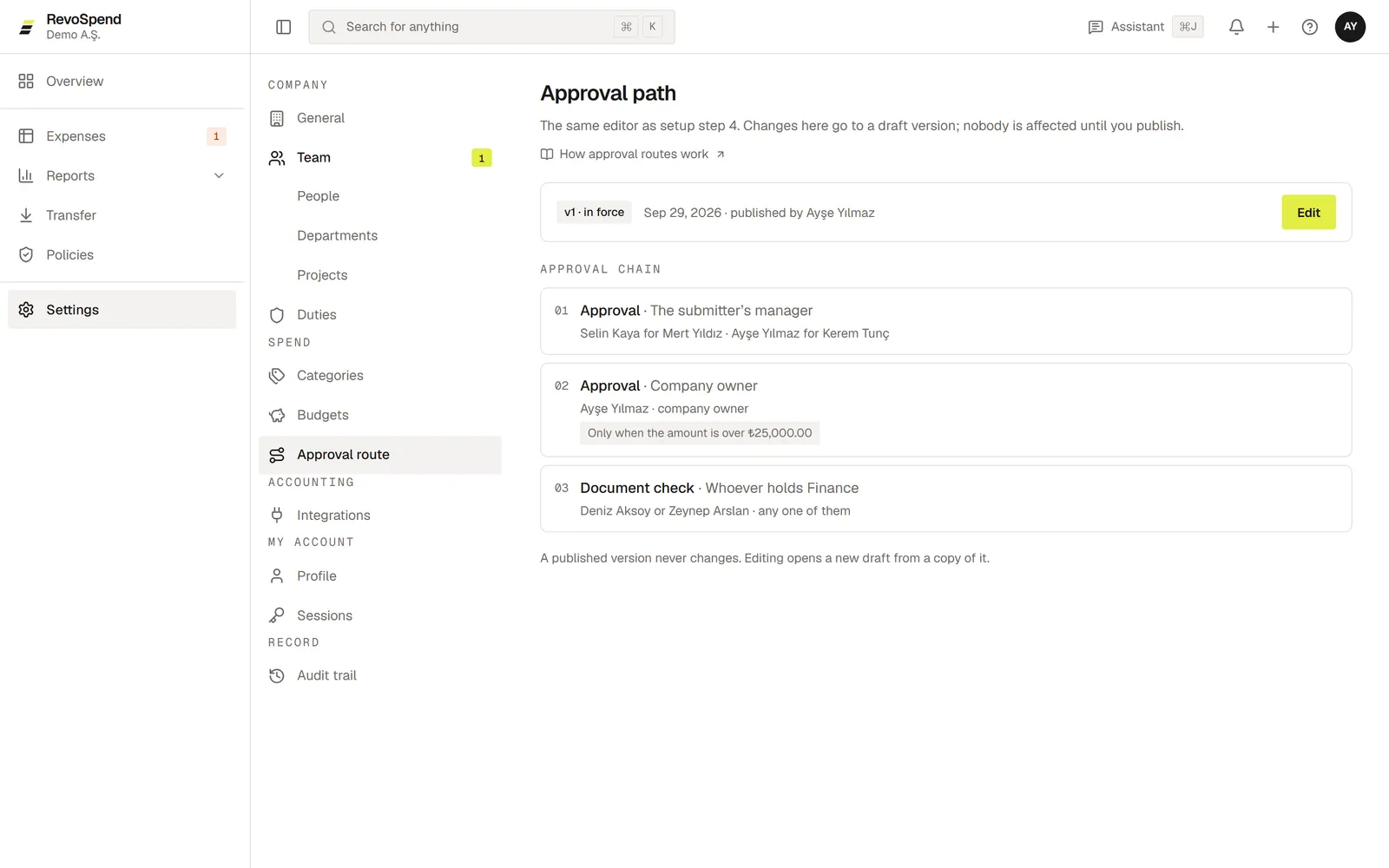
Your approval workflow — in RevoSpend, the approval route — decides who approves each expense, in what order, and when. Build anything from a single approver to multi-level approval with rules by amount, category or project. You set it up during company setup and can change it any time under Settings → Approval route.
Before you start
- Owners and admins edit the approval route. Everyone else can view the version in force.
- Your team should be in place, with managers and departments — most routes build on them. See Organise your team with departments and projects.
Choose how expenses move
| Mode | How it works |
|---|---|
| On your own | No approval. Expenses are recorded as soon as they’re saved. |
| Single approval | One approver: The submitter’s manager or One person. |
| Multi-stage | An ordered chain of steps, with optional special flows for particular teams. |
With Single approval you also choose who does the Document check: Make it a separate step for your Finance team after approval, or The approver does it. Need more? Use switch to multi-step on the page.
Build the approval chain
In Multi-stage mode, click Add a step. Each step answers three questions.
What happens? Approval (approve, reject or ask for a fix), Document check or Accounting prep.
Who does it?
- The submitter’s manager
- Department head
- Project lead — skipped when the expense has no project
- Whoever holds a duty, such as Finance or Accounting — choose any one of them or all of them
- A named person
- Company owner
When? Always, or Conditional. Conditions can look at:
| Condition | Options |
|---|---|
| Amount | is over, is under, is between |
| Category | is one of, is not one of |
| Project | is set, is not set, is one of, is not one of |
| Paid by | is company or employee |
When a step has several conditions, all of them must be met. Amounts are in your company’s base currency.
A split expense is judged as a whole: amount conditions look at the full receipt total, and category conditions apply if any part matches.
Special flows
Some teams need a different route — a sales team with its own director, or a project with its own sign-off. Under Special flows, click Add a flow and choose Who is it for?: a department, a project, particular people, a duty or a place in the structure. Expenses from people outside every flow follow the default chain.
If two flows can cover the same expense, RevoSpend asks which comes first before you can publish.
The owner’s own expense
Choose what happens to the company owner’s own expenses: Someone else approves, or the expense Closes without approval after the document check.
When no approver is found
Nobody approves their own expense. When the approver would be the submitter, the manager above them approves. When an approver is on leave, their delegate steps in — or the manager above them. When nobody fits, the Fallback approver you choose here approves.
Reminders and escalation
Under Reminders and business days, set when approvers get a reminder (3 business days by default) and when an expense escalates to the next manager up (5 business days by default). The original approver can still decide after escalation.
Preview, then publish
Start a draft
Click Edit. Your changes go into a draft; the route in force keeps working until you publish.
Check the preview
Under Preview, enter a Sample amount and pick a person. RevoSpend shows who would approve the expense, step by step, and why. Nothing is recorded and nobody is notified.
Publish
Review Changed in the draft and click Publish. Expenses submitted from now on follow the new version.
Expenses already on their way aren’t affected
An expense follows the version that was in force when it was submitted. Earlier versions are kept, and every publish is written to the audit trail.
Troubleshooting
Publish is disabled. RevoSpend lists what still needs an answer — for example a missing fallback approver, a duty with no one in it, or two flows without an order. Resolve them and publish.
“The condition couldn’t be saved”. Thresholds must be in your company’s base currency.
Someone can’t be removed from the team
They’re named in the published route — as a step’s approver, in a flow, or as the fallback approver. Publish a version without them first, then remove them.