Snap receipts with your phone
Use your phone as a receipt scanner: snap one or several receipts, check what RevoSpend read and submit — even offline, sent once you’re back online.
Take a photo of the receipt as soon as you get it. RevoSpend reads the merchant, date, amount and tax for you; you check the result and send it for approval.
Open the camera
Tap Scan receipt, the button in the middle of the bottom bar. The first time, allow RevoSpend to use the camera.
Snap your receipts
Fit the receipt in the frame and tap Take photo. You can shoot several receipts in a row. To add a photo or PDF you already have, tap Choose from photos. Tap a thumbnail to enlarge it or to delete it.
Tap Done and send
Tap Done, check the list and tap Send. RevoSpend starts reading your receipts right away.
Check and submit
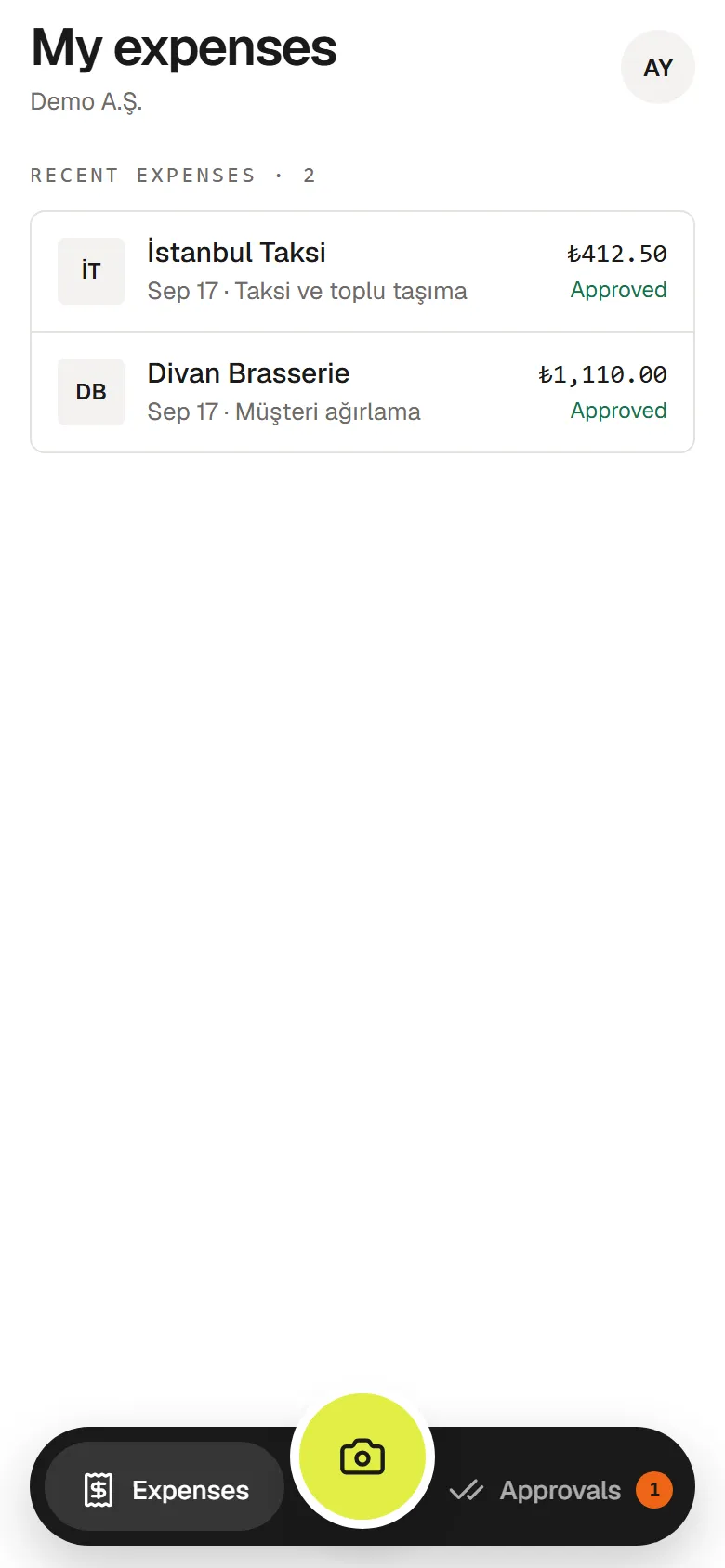
On Expenses, your receipts appear under To review. When a receipt shows Needs review, open it, check the fields and tap Submit for approval.
Submitted for approval
The expense is now on its way to your approver. If your company’s approval route doesn’t require approval for it, you’ll see Approved straight away.
What you check
Fields fill in as the receipt is read: Merchant, Amount, Date, Tax rate, Who paid? (I paid or Company paid), Category, Receipt no. and Description. You can start typing while the receipt is still being read — anything you type is kept.
Not ready to submit? Tap Leave for later. The receipt stays under To review until you come back.
No signal? Keep shooting
Receipts you send while offline wait safely on your phone under On this phone and go out automatically as soon as you’re back online. If you close the app, they go out the next time you open it.
Each receipt is sent to the company you took it in. If you switch company before it goes out, it waits until you switch back.
Tips for a sharp photo
- Lay the receipt flat and fit the whole receipt in the frame.
- Avoid shadows and glare. Use Turn on flash in low light.
- Photos and PDFs up to 10 MB are accepted.
Troubleshooting
“A reason is needed”. The expense is outside one of your company’s spending rules. Add a short explanation so your approver can decide.
“Couldn’t submit”. The expense is saved as a draft. Tap Finish in the app to complete it in the web app.
A correction was requested. Your approver sent the expense back with a note. Tap Fix in the app to make the change in the web app and resubmit.
I’m signing out with receipts still waiting. RevoSpend asks before you sign out: signing out removes receipts that haven’t been sent from the phone. Go back online first so they’re sent.